

Choose a model
Choose a model from the Model menu. Some models list what they can do beside their name, such as Generate or Edit.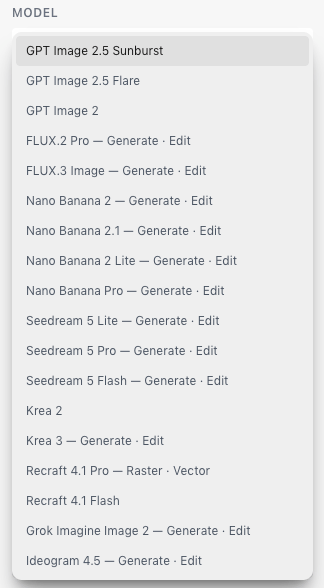
Write a prompt
Describe the image in Prompt. To steer it with your own images, add references and point to them with @ tags. ZeroGen names the image after your prompt unless you type a Name or use a naming preset.Set the output
The Output settings depend on the model. Auto leaves a setting to the model’s default.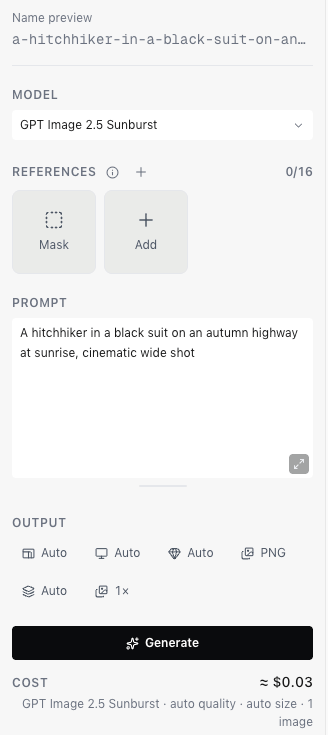
Check the cost and generate
Cost, under the Generate button, estimates the price of exactly what you’ve set up. When you choose Generate, ZeroGen holds that estimate from your organization’s balance. You’re charged for what the model actually used, which can differ from the estimate. See Credits and billing. Your image appears in Generations when it’s ready.Review and reuse an image
Select an image in Generations to open it in the viewer.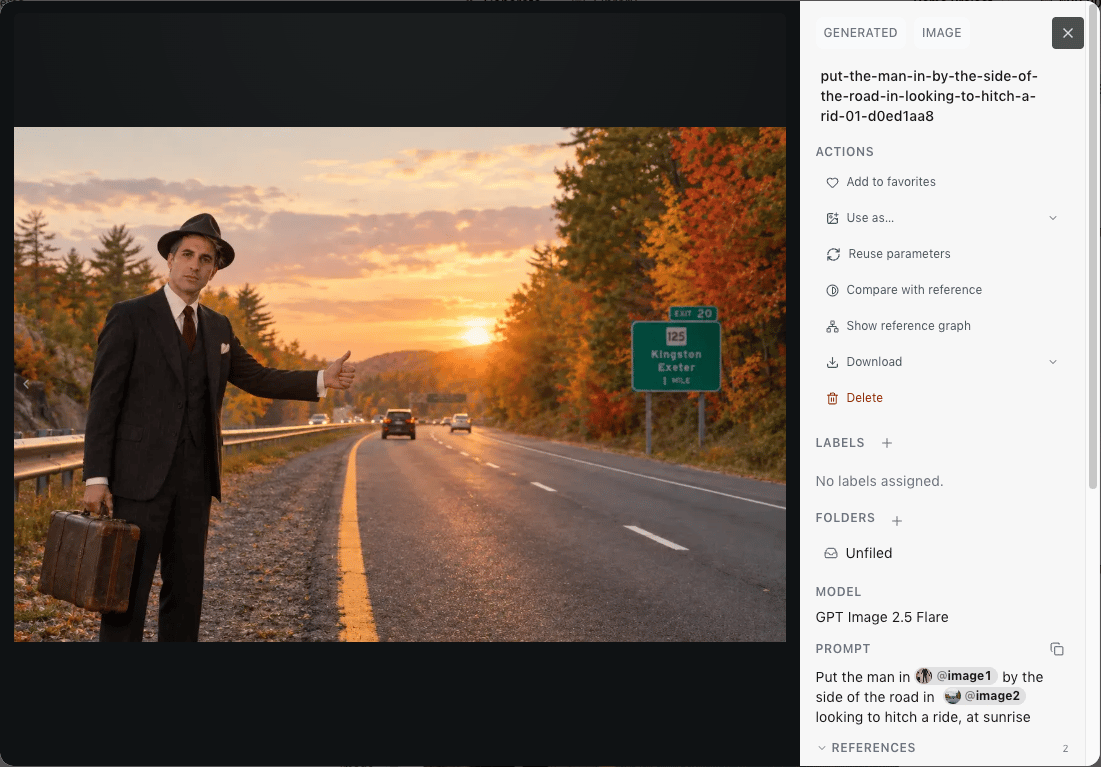
- Reuse parameters loads the image’s settings back into the generator. See Reuse and trace a result.
- Use as… adds the image to your next generation. See Use as a reference or frame.
- Show reference graph shows what the image was made from and what’s been made from it. See Reuse and trace an asset.