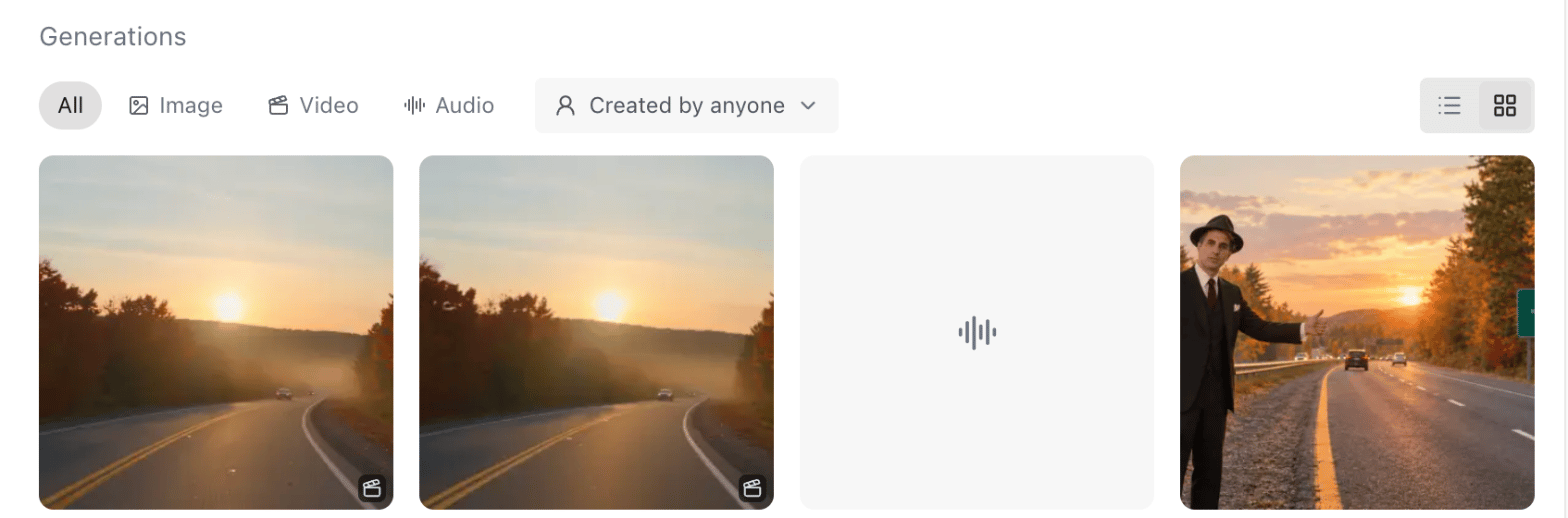
Generations, on the right of Generate, lists what’s been made in the project, newest first. It starts with your own generations.
Generations in grid view, with filters for All, Image, Video and Audio, a Created by anyone menu, and buttons to switch between list and grid view.

Filter the list

  • All shows every type. Image, Video and Audio show one type.
  • Created by switches between Me and Anyone in the project. ZeroGen remembers your choice in each project on this device.

List or grid

  • List view shows each generation with its prompt, model and settings. Upscaling a draft happens here. A strip of thumbnails on the right jumps to any generation.
  • Grid view shows one tile per output, with quick actions to reuse, favorite and download.
To stop a running generation, choose Cancel on it. See Generations and outputs.

File generations in folders

In the sidebar, Generations shows your own history, and the project’s folders sit below it. Select a folder to see only what’s in it. While a folder is selected, your next generation is saved into it. To file one of your generations, drag it onto a folder, or choose the folder button on its card, then Add to folder. When it’s already in a folder, Move to folder also appears. You can only file your own generations.

Reuse a generation

To run a generation again with its settings, see Reuse and trace a result. To add it to your next generation as a reference or frame, see Use as a reference or frame.