

Point to a reference with @
- Add references to the References tray. See Frames and references.
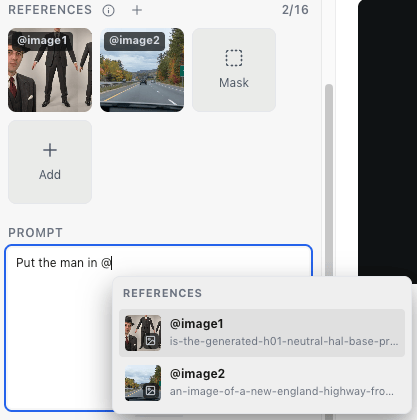
- In Prompt, type @. A menu lists the references in the tray that the current model accepts. Keep typing to narrow it.
- Choose one. It appears in the prompt as a chip, such as @image1.
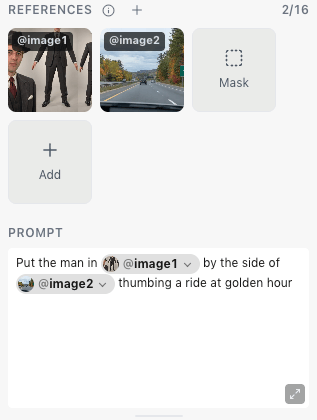
Some models can’t use tags with Start or End frames set. If ZeroGen says so,
remove the frames or the tags. A tag whose reference you removed must be
fixed before you can generate.
Pull in a folder with
Type # in Prompt to open a menu of the project’s folders. By default, # brings in a folder’s favorites. A project can instead bring in assets with the labels it chooses. See Projects. A folder with nothing the current model can use says so, such as No favorites, and can’t be chosen.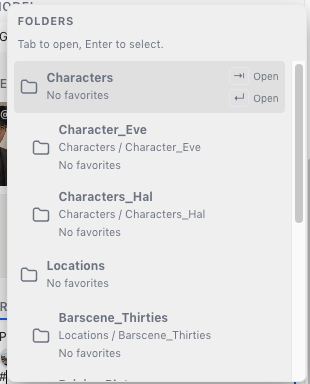
- Press Tab to open a folder and see the folders inside it.
- Press Enter to choose it. ZeroGen adds the folder’s matching assets to the References tray and inserts their tags, such as @image1, @image2.