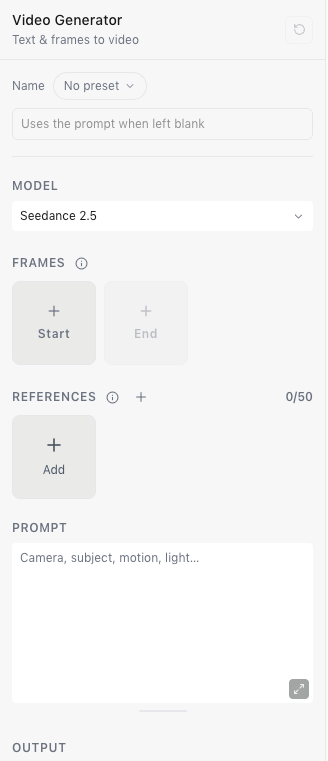
Add references
Choose Add in the References tray. The picker shows everything in the project.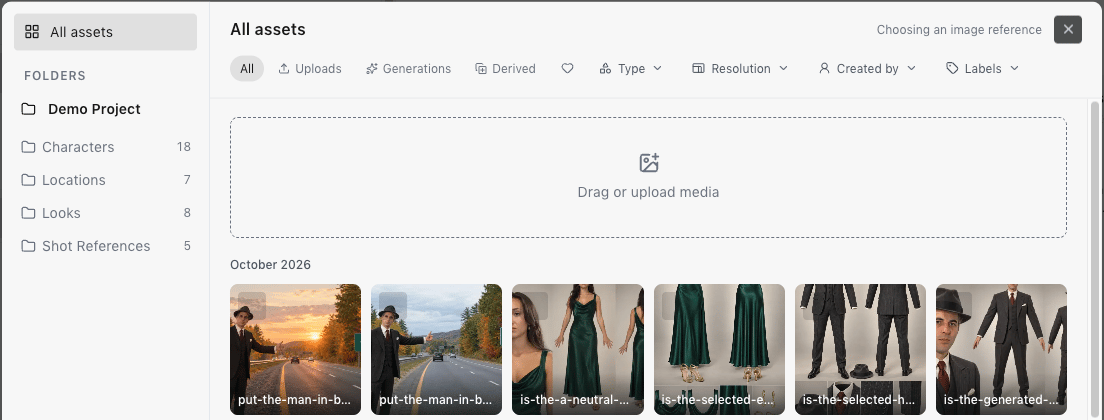
- Browse All assets or open a folder.
- Filter by uploads, generations or derived assets, favorites, type, resolution, who created it, or labels.
- Drag a file onto Drag or upload media to upload and use it.
- Select several, then choose Done.
Use as a reference or frame
To use something you’ve already made, open it in the viewer, or hover over it, and choose Use as… › Use as reference, Use as start frame or Use as end frame. Only the options the current model accepts appear.How many references a model takes
The count above the tray, such as 2/16, shows how many you’ve added out of the model’s limit. Each model has its own limits. For example, GPT Image 2.5 takes 16 images, and Seedance 2.5 takes up to 50: 30 images, 10 videos and 10 audio clips. Video and audio references show their length. Models also limit how long each clip, and all clips together, can be.Mark a real person
Image and video references have a person button on their tile in the tray, Mark as containing a real person. Turn it on for footage or photos of a real, recognizable person. ZeroGen remembers the setting on the asset. Seedance refuses a recognizable person who isn’t marked. When Seedance says which reference contains a person, ZeroGen marks it and submits the generation again for you, once. The new generation shows a Resubmitted label.Edit part of an image with a mask
Image models that edit selected areas show Mask in the tray. Add a mask the exact size of your first reference image. If the mask has transparency, the transparent areas are edited; otherwise, the white areas are.Set start and end frames
In the video generator, choose Start under Frames to set the exact first frame. On models that support it, choose End for the last frame. You need a start frame before you can set an end frame.