

How ZeroGen names files
With nothing in Name, ZeroGen names the file after your prompt: lowercase, with spaces and symbols turned into hyphens, @ tags left out, and cut to 64 characters. It adds the output number and a short ID. For example, the prompt “Put the man in @image1 by the side of the road in @image2 looking to hitch a ride” gaveput-the-man-in-by-the-side-of-the-road-in-looking-to-hitch-a-rid-01-d0ed1aa8.
To choose the name yourself, type up to 80 characters in Name. Name
preview shows the result. When one generation makes several files, they’re
numbered _01, _02 and so on.
Use a preset
Choose the menu beside Name and pick a preset. Fill in its fields, and Name preview shows the name every output will get.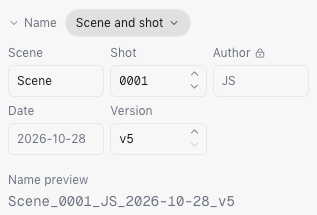
Create a preset
Owners and Admins can create, rename and delete presets. Choose the menu beside Name, then New preset, to open the Name builder.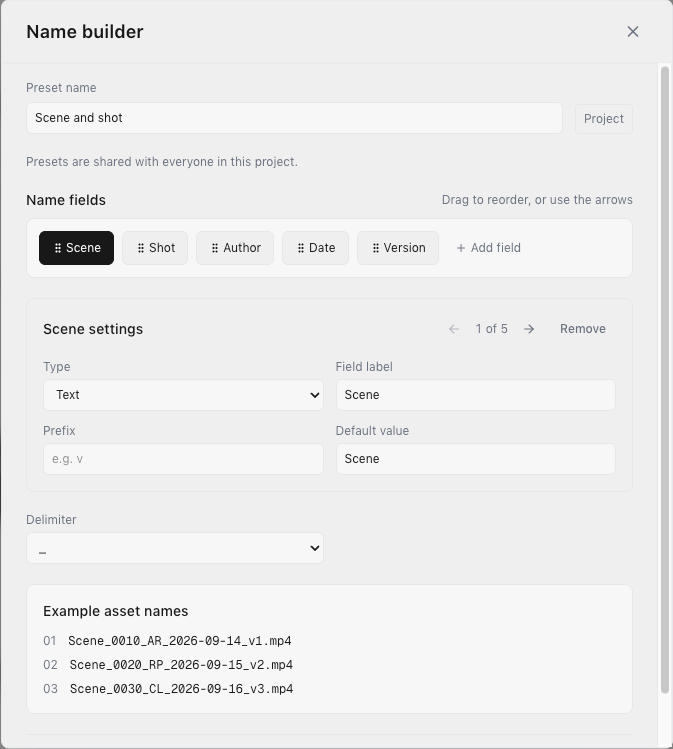
- Name the preset.
- Add fields and drag them into order. Each field is one of these types:
- Text: a word you type, with an optional prefix and default value.
- Counter: a number that can go up automatically within the folder you’re saving to.
- Author: who made the file.
- Date: the day it was made.
- Parent Folder: the folder it’s saved in.
- Choose a Delimiter to join the fields: a hyphen, an underscore, a period, a space, none or your own.
- Check Example asset names, then choose Save preset.