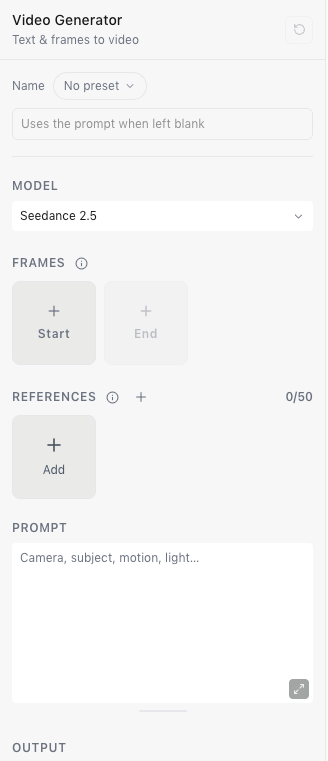
Choose Video in Generate’s sidebar to open the video generator.
The video generator with Seedance 2.5 selected, empty Start and End frames, an empty References tray and a prompt box.

Choose a model

The Model menu lists what each model takes, such as Text, Frames, References, Audio, Edit or Extend. What you can set below changes with the model.
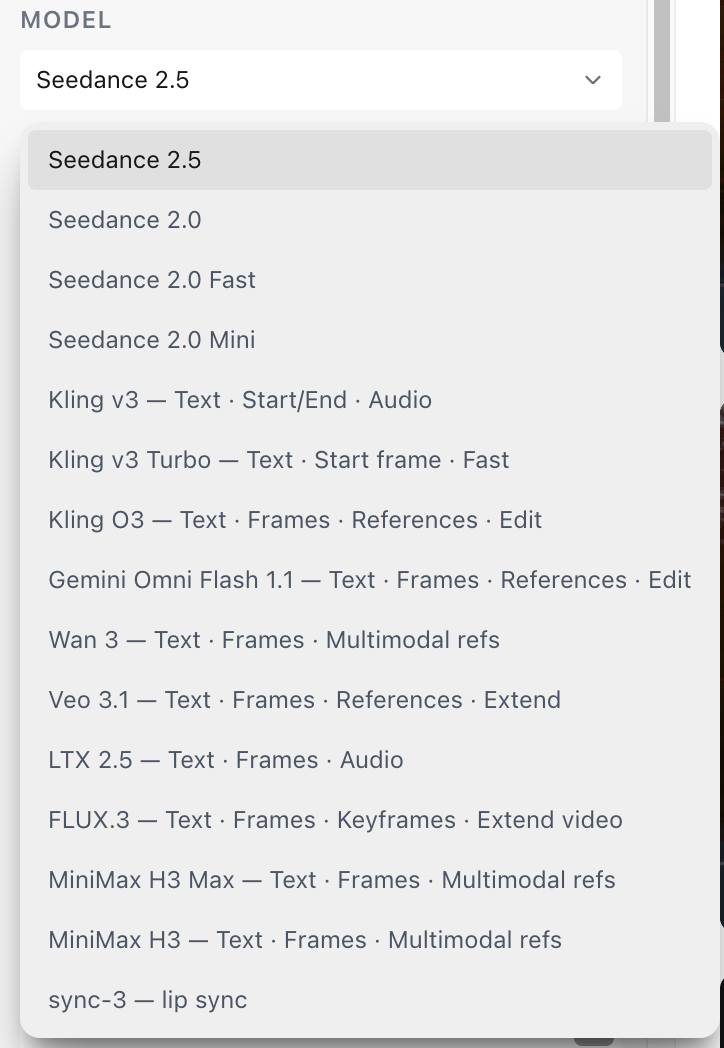
The video Model menu, listing models such as Seedance 2.5, Kling O3, Veo 3.1, Wan 3, LTX 2.5 and MiniMax H3. Most list what they accept, such as Text, Frames or References.

Start from frames or references

  • Frames set the exact first frame, and on models that support it, the last frame. Choose Start, then End.
  • References guide the look of the video without fixing a frame. Each model accepts its own number and types of references.
If you add images as references and want them as the exact first or last frame instead, choose them under Frames. See Frames and references. On Seedance, when you’ve added references and no frames, Output also has a mode menu:
  • Reference media, the default, uses your references to guide a new video.
  • Edit video changes a reference video.
  • Extend video continues a reference video.
Editing and extending need a video in References.

Write a prompt

Describe the camera, subject, motion and light in Prompt. Point to your references with @ tags.

Set the output

Every setting depends on the model.
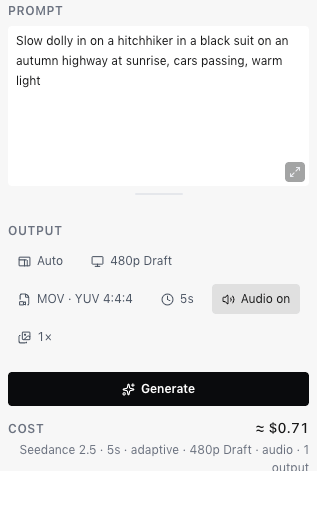
A video prompt above the Output settings, set to Auto, 480p Draft, MOV · YUV 4:4:4, 5 seconds, audio on and one output, with a cost estimate of about $0.71.

Check the cost and generate

Cost estimates the price of exactly what you’ve set up. Longer, sharper videos cost more. You’re charged for what the model actually used. See Credits and billing. Your video appears in Generations when it’s ready. Video models can take a few minutes.