

Reuse a generation’s settings
Select a generated asset, then choose Reuse parameters in its details. You can also hover over its tile and choose the circular arrows, or use the button in the viewer.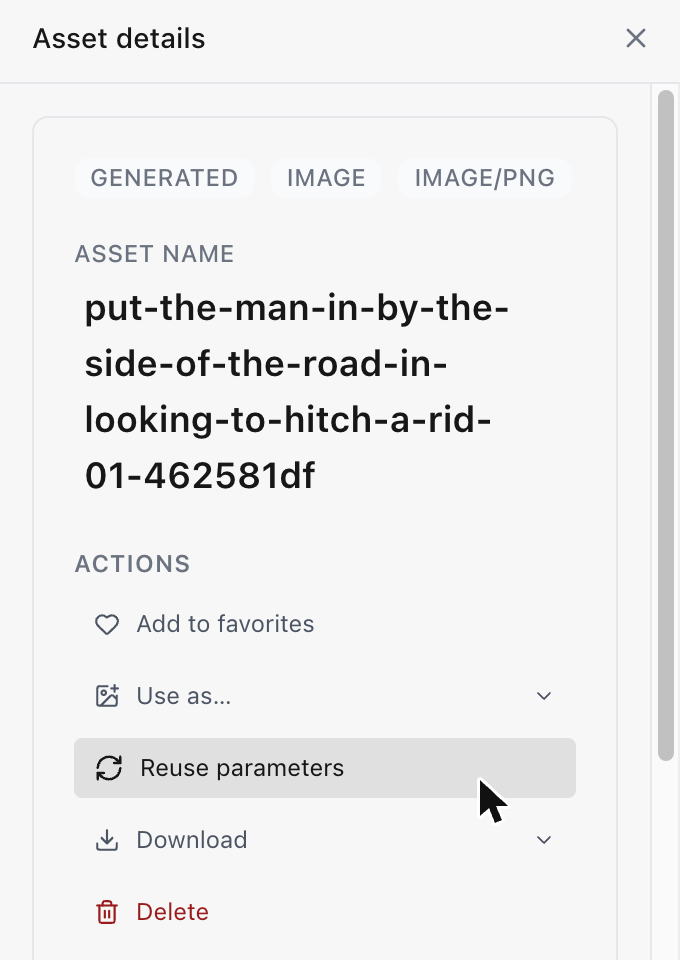
Open the reference graph
Double-click an asset to open it in the viewer, then choose Show reference graph. In Generate, open a result and choose the same action. The graph takes the place of the media and needs a window at least 768 pixels wide.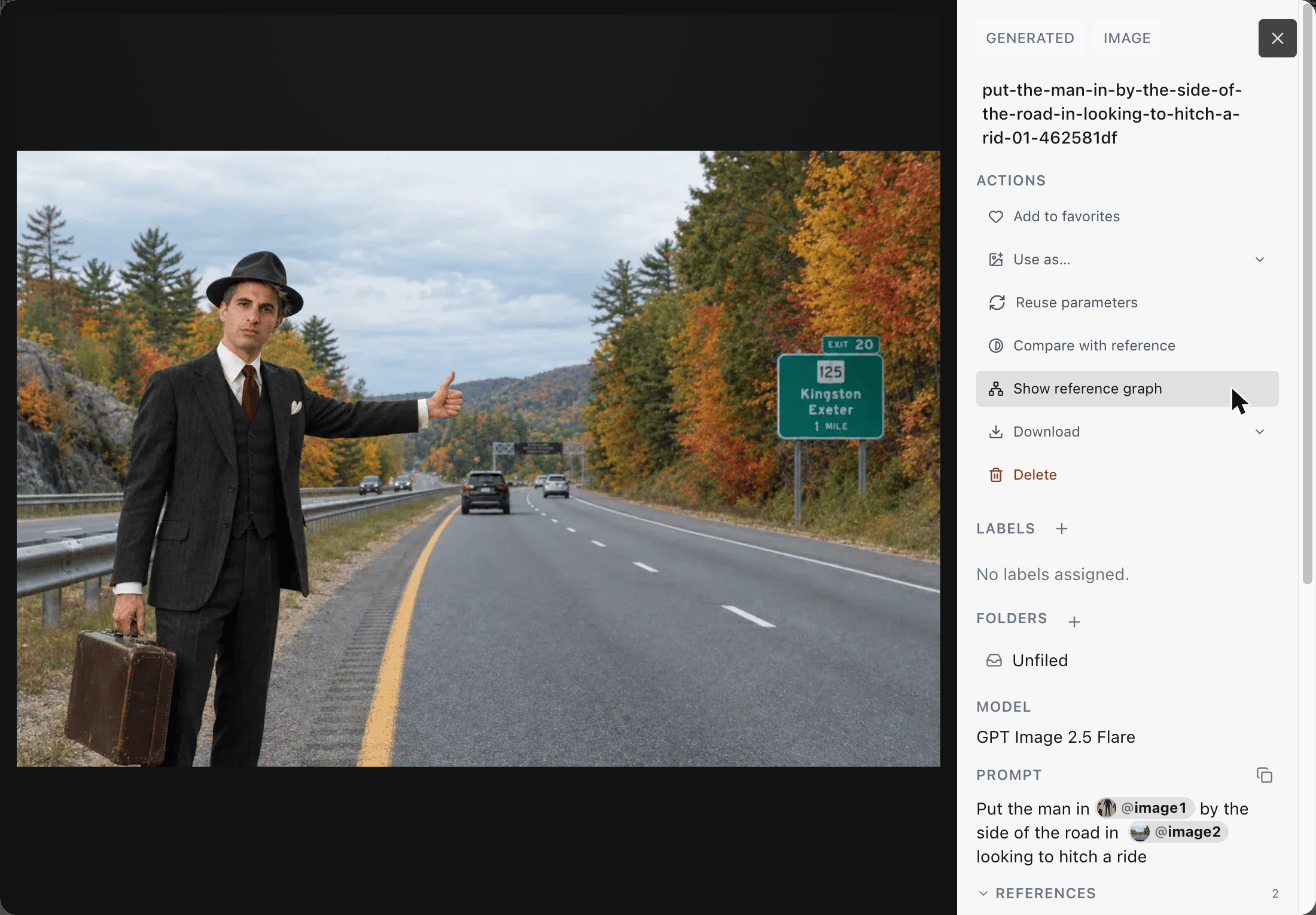
Read the graph
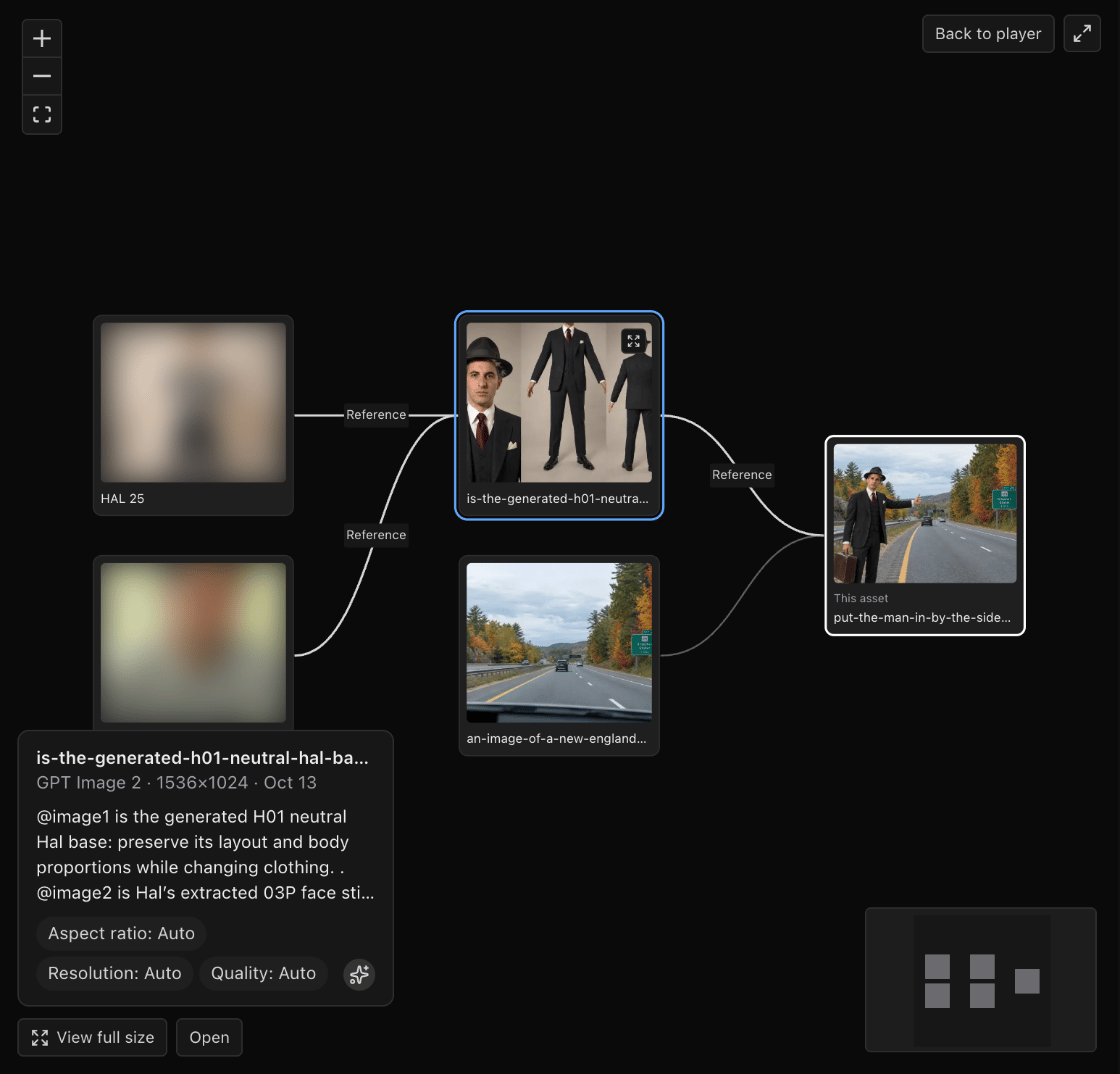
- Each card is an asset. What the asset was made from is on the left, one column per step, and what’s been made from it is on the right. The asset you opened is marked This asset.
- Hover over or select a card to light up its connections and see how it was used, such as Reference, Start frame, End frame or Keyframe.
- Select a card to see its model, size, date, prompt and settings. Choose View full size to see it large without leaving the graph, or Open to move the graph to that asset. Double-clicking a card also opens it.
- A button such as +3 more on a card shows uses that are hidden to keep the graph readable.
- Play all plays every video in the graph at once.
- Zoom, move around and go full screen with the graph’s controls, or zoom with your mouse or trackpad.
What the graph shows
- A deleted asset stays in the graph, marked In Recently deleted, and an asset that can’t be shown is marked Not available.
- For a very long history, the graph says Older sources aren’t shown or Later uses aren’t shown where it stops.
- If nothing was recorded and nothing has used the asset, the graph says so.