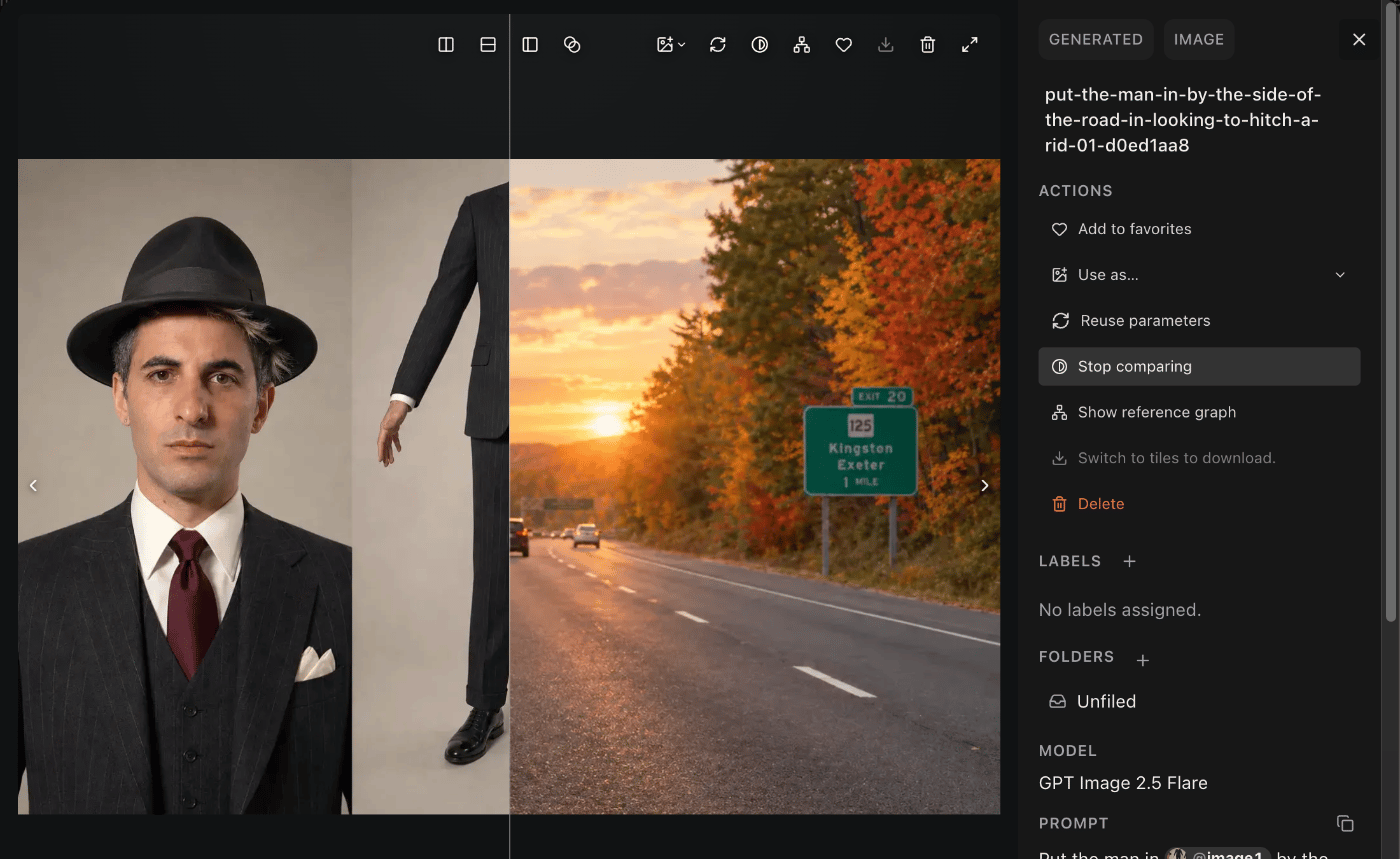
Asset details
The details panel and the viewer show the same information:- Whether the asset was uploaded, generated or derived from another asset, and its type.
- Its name. Select the name to rename it.
- Its labels and folders. Choose + beside either to add more, or select a folder to open it.
- Its size, format and dimensions, plus the duration of video and audio.
- For an upload: who uploaded it and when.
- For a generation: who made it, what it cost, and the model, prompt, settings and references it used.
Open the viewer
The viewer shows the asset large, with its details beside it.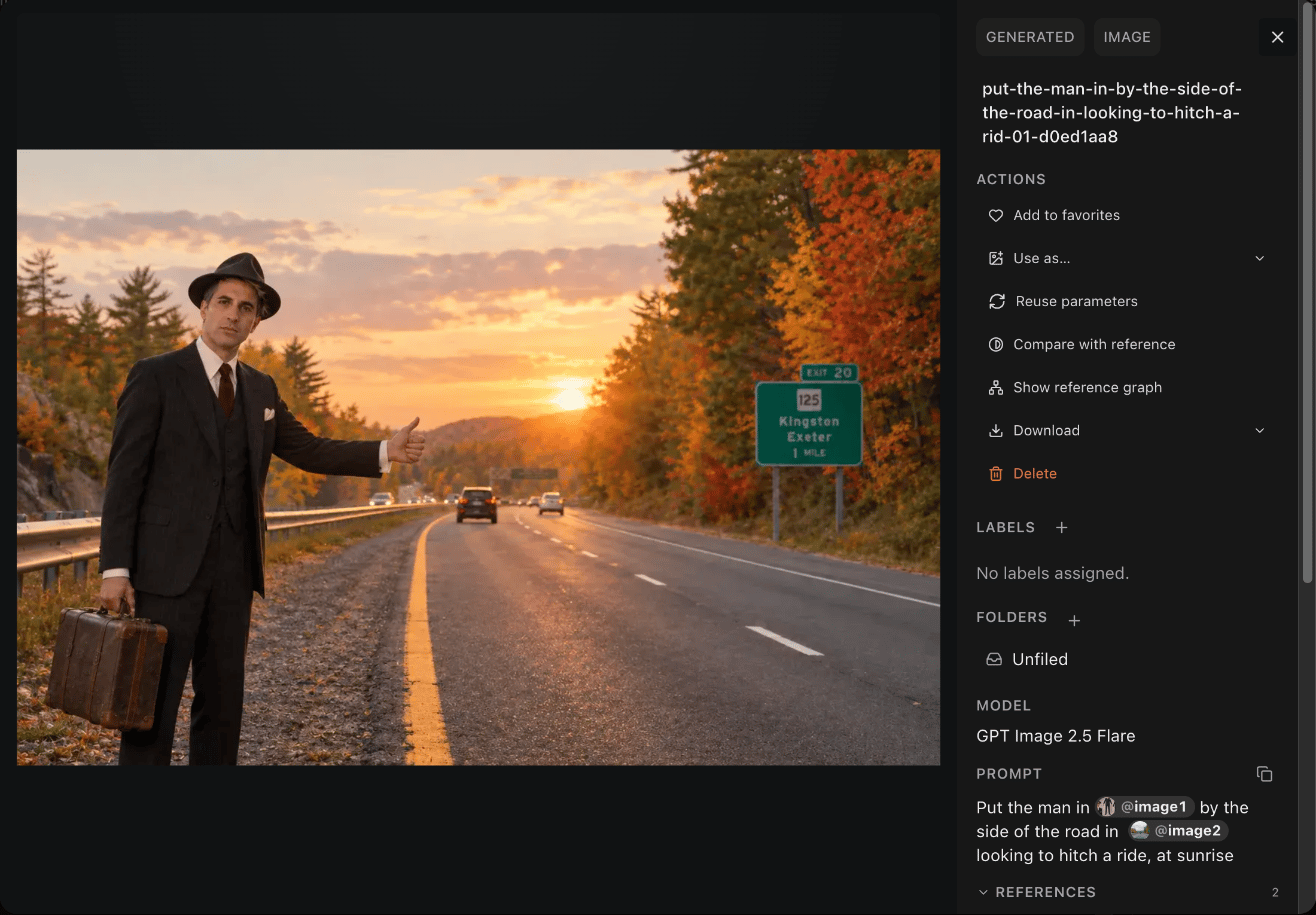
- Add to favorites. Everyone in your organization sees the same favorites.
- Use as… to add the asset to your next generation. See Use as a reference or frame.
- Reuse parameters to load a generation’s settings back into Generate. See Reuse and trace an asset.
- Show reference graph to see what the asset was made from and what’s been made from it. See Read the graph.
- Upscale draft on a Seedance draft, including a teammate’s. See Draft, then upscale.
- Save frame to keep the current frame of a video as an image.
- Download or Delete it.
Keyboard shortcuts
Compare with its references
When a generation was made from references, you can see them next to the result.- Open the generation in the viewer.
- Choose Compare with reference. A reference appears beside the output.
- Under References, choose which references to show, up to eight.
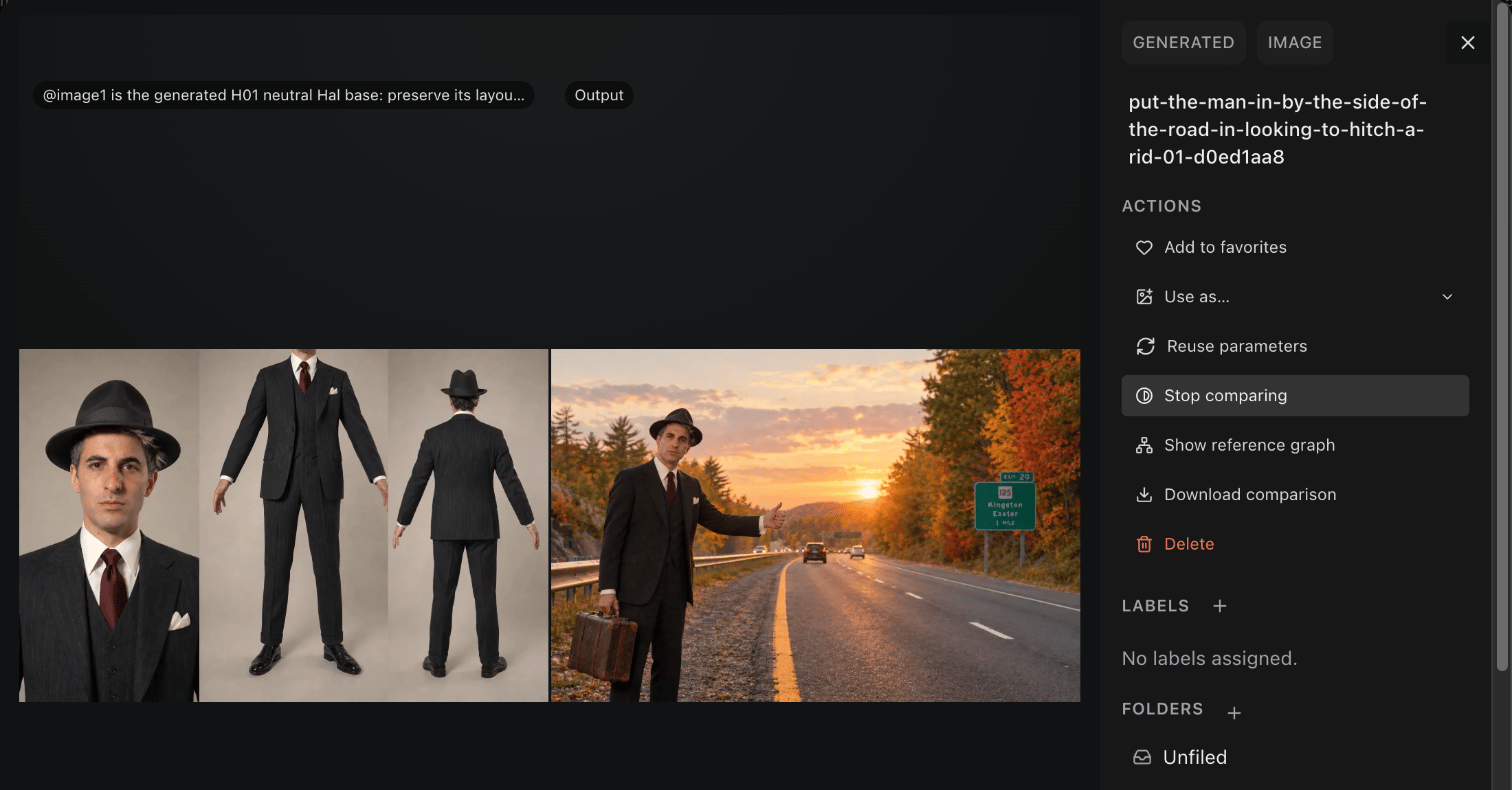
- Tile horizontally: side by side. Drag the panes to reorder them.
- Tile vertically: one above the other.
- Wipe: the reference and the output in one frame, split by a divider you move to reveal either.
- Overlay: the reference over the output, with a slider to blend them.