Browse
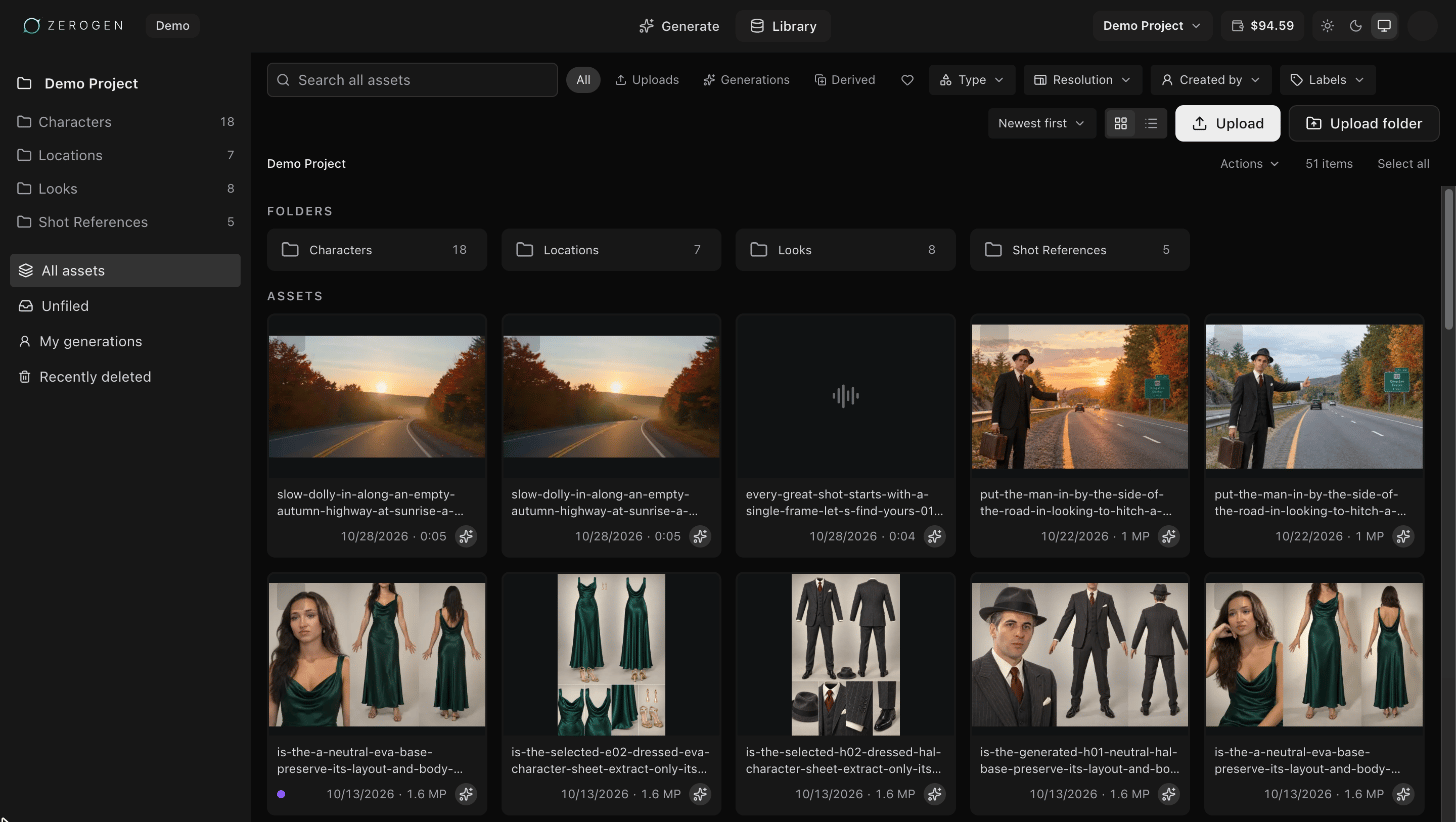
The sidebar lists the project’s folders, then four views:- All assets: everything in the project.
- Unfiled: assets that aren’t in any folder.
- My generations: what you’ve generated.
- Recently deleted: deleted assets you can restore. See Recently deleted.
Search
Type at least two characters in Search to find assets by name. Every word you type must appear in the name, and file extensions are ignored, so you can paste a file name. Inside a folder, search includes its subfolders. Search doesn’t look at prompts or labels. To find assets by label, use the Labels filter.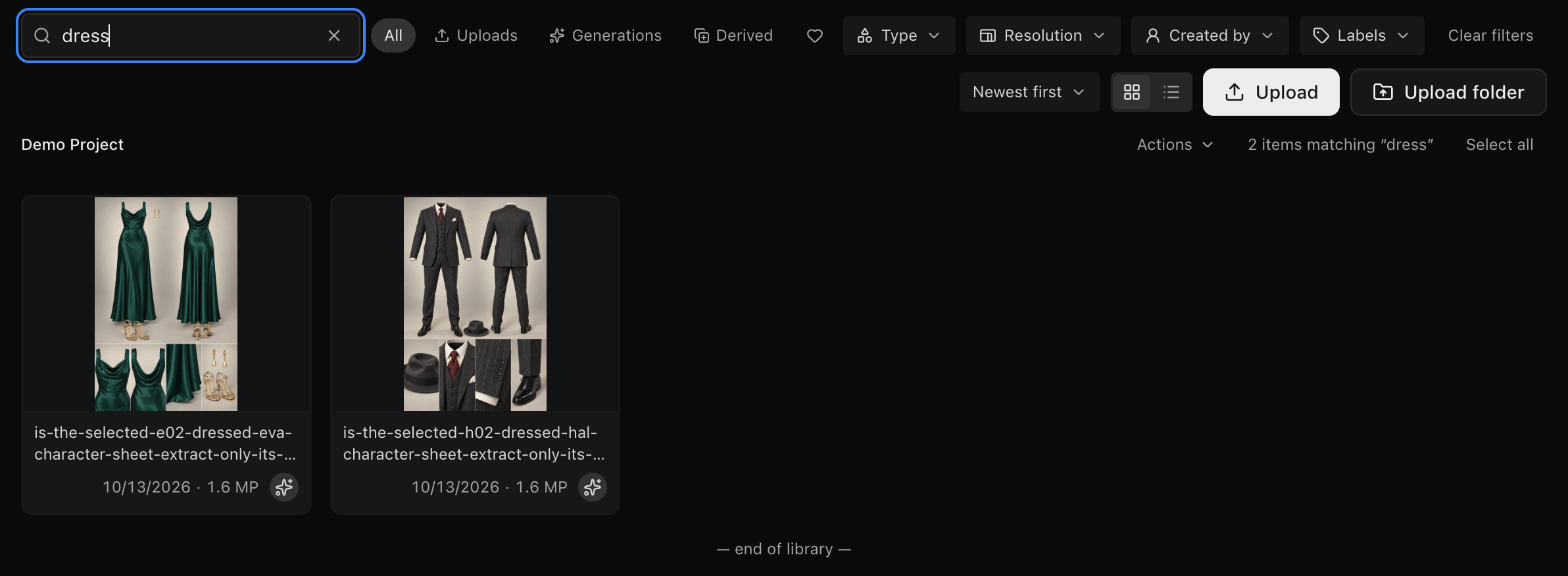
Filter
Filters narrow the current view, and you can combine them with search and with each other.Sort and view
- Choose Newest first or Oldest first.
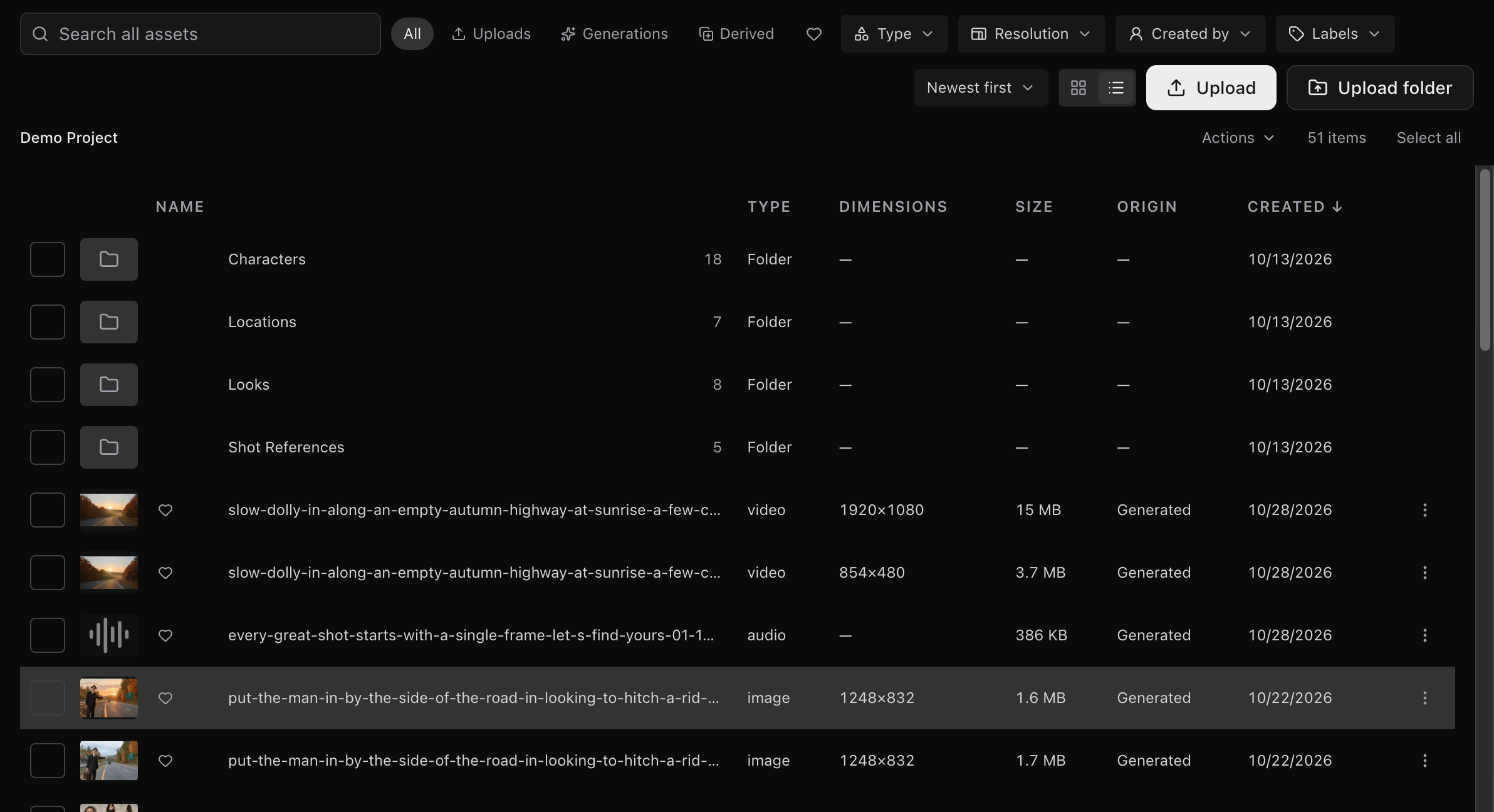
- Switch between grid view and table view. Table view lists each asset’s type, dimensions, file size, origin and creation date. Your browser remembers which view you used.
Select several assets
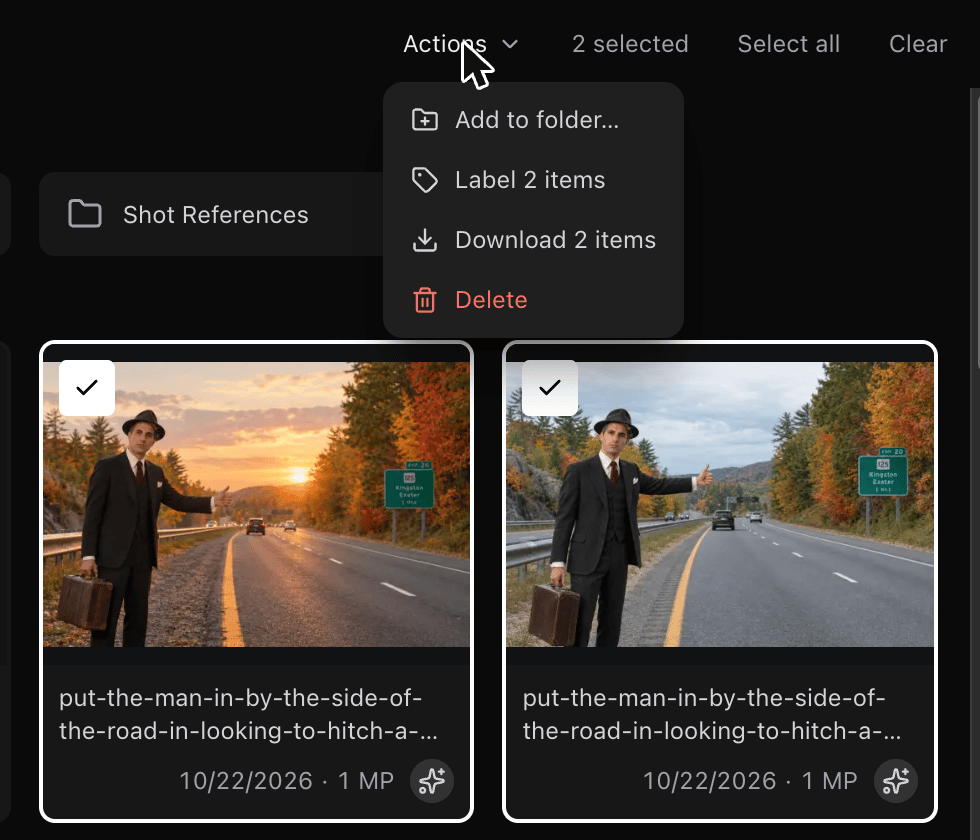
Hover over an asset and select its checkbox. Command-click (Ctrl-click on Windows) adds or removes one asset, Shift-click selects a range, and Select all selects everything in the view. Then open Actions to add the selection to a folder, label it, download it or delete it. Inside a folder, Move to… moves it to another folder.