

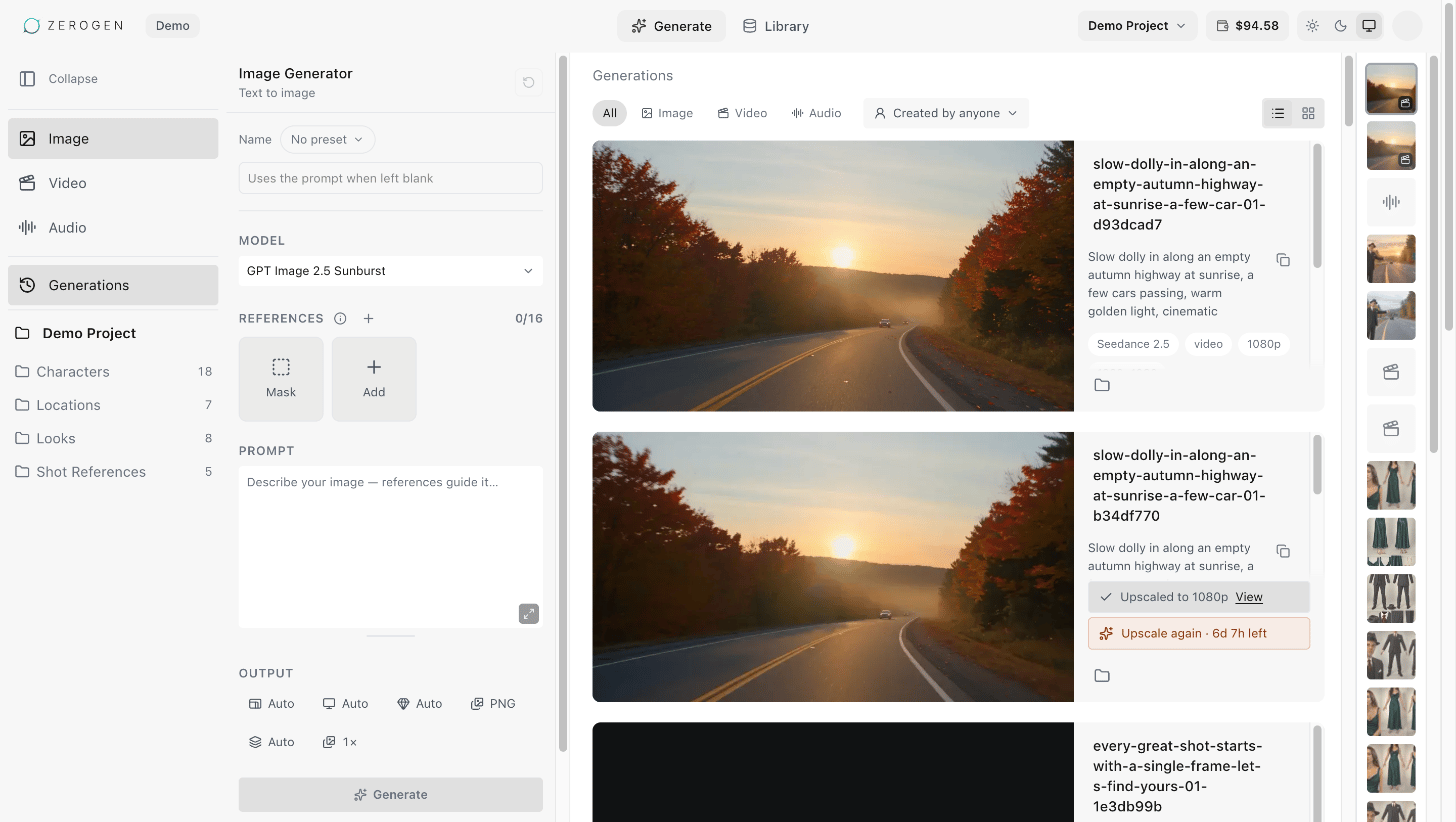
The top bar
- Your organization’s name sits beside the ZeroGen logo.
- Generate makes images, video and audio.
- Library holds every upload and generation in the project, with folders, labels and search.
- The project menu shows the project you’re in. Choose it to switch to another project.
- The balance shows your organization’s funds. Choose it to see what’s available to start new work and what’s reserved for work that’s still running. Add funds opens Settings › Billing.
- The theme buttons switch between light, dark and your system’s setting.
- The account menu, in the corner, has Settings, Switch Organization and Sign Out.
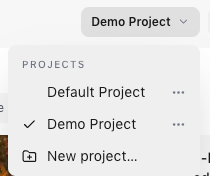
The project menu
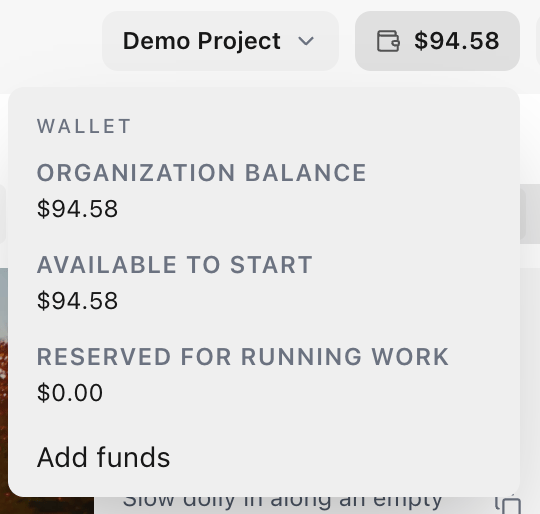
The balance
Generate
- The sidebar switches between the Image, Video and Audio generators. Below them, Generations shows your history, and the project’s folders show what’s filed in each.
- The generator in the middle is where you choose a model, add references, write a prompt and see the cost.
- The list on the right shows what you selected in the sidebar, newest first. Filter it by type, or use Created by to switch between your own generations and everyone’s. See Your generations.
Library
The Library shows everything in the project. Its sidebar lists the project’s folders and views such as Unfiled and Recently deleted, with search and filters above the assets. See Search and filter.Settings
Open the account menu and choose Settings.- Account is your own: Profile, Security and Sessions, plus API keys if your organization has API access. See Account and security.
- Organization is shared: General shows its name and address, then Team, Billing and, for Owners and Admins, Usage. See Team and roles.