

Sign in
Go to zerogen.com/login and sign in with your email address or your Google account. ZeroGen opens your organization on Generate, in the image generator.Make an image
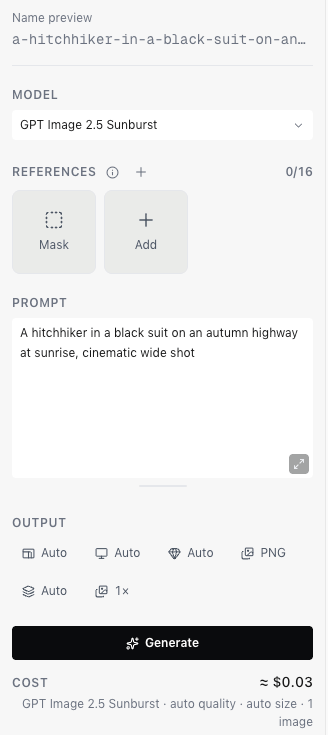
- Choose a model from the Model menu.
- Describe the image you want in Prompt.
- Check Cost, under the Generate button, for an estimate of the price.
- Choose Generate.
Open it in the viewer
Select an image in Generations to open it in the viewer. From here you can add it to your favorites, download it, reuse its settings for your next generation, and read the model and prompt that made it.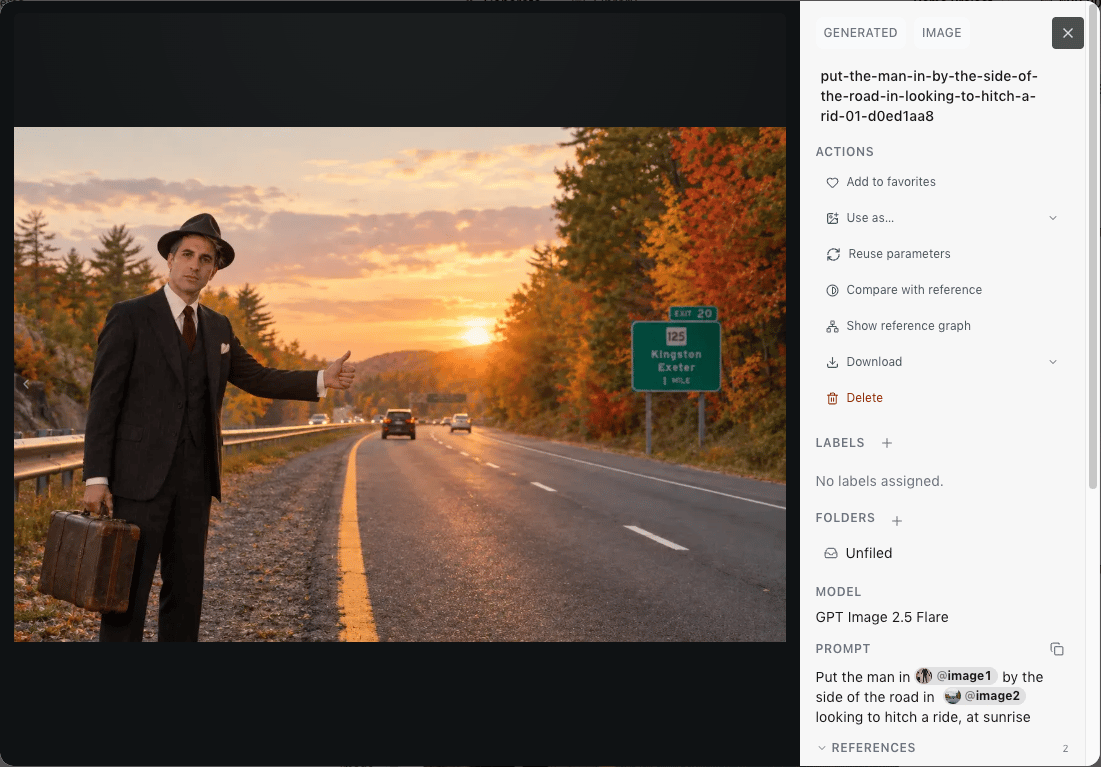
The viewer, here showing an image made from two references
Next steps
Find your way around
The main parts of ZeroGen and where to find them.
Make a video
Pick a video model, add frames or references, and generate.
Prompts, @ tags and # folders
Point a prompt at assets with @ and at folders with #.
Credits and billing
How a generation is paid for.