Owners and Admins manage billing in Settings › Billing. Everyone in the organization can see the balance there. For how the balance and charges work, see Credits and billing.

Add a card

Credit purchases and auto-reload charge your organization’s default card.
  1. Under Payment details, choose Add card.
  2. Enter the card on the secure Stripe page that opens.
A new card becomes the default. If a card needs extra approval from your bank, the page shows Finish payment. Only the default card is charged; ZeroGen never falls back to another card. To change it, choose Make default beside another card. Remove deletes a card after you confirm, though the default can’t be removed while auto-reload uses it.

Buy credits

  1. Choose Buy credits.
  2. Pick $25, $100 or $500, or choose **Other amount** and enter a whole-dollar amount from $10 to $10,000.
  3. Choose the card to pay with, then Buy credits.
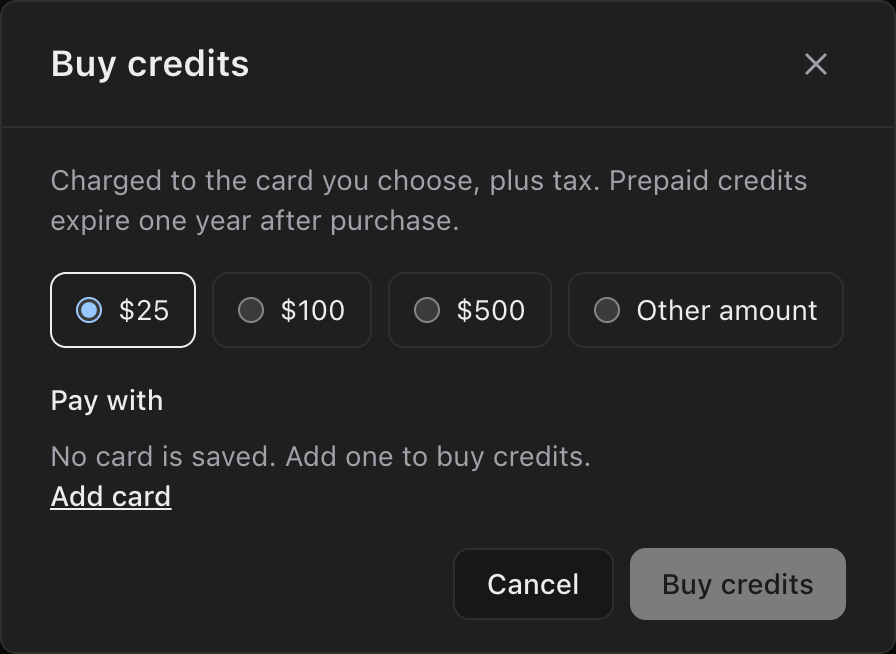
The Buy credits window, with amounts of $25, $100, $500 or Other amount, a Pay with section and a Buy credits button.
You’re charged the amount plus tax. Bought credits expire one year after purchase. Paying with a different card makes it your default.

Turn on auto-reload

Auto-reload tops up your balance when it runs low, so work doesn’t stop.
  1. Choose Manage auto-reload.
  2. Set:
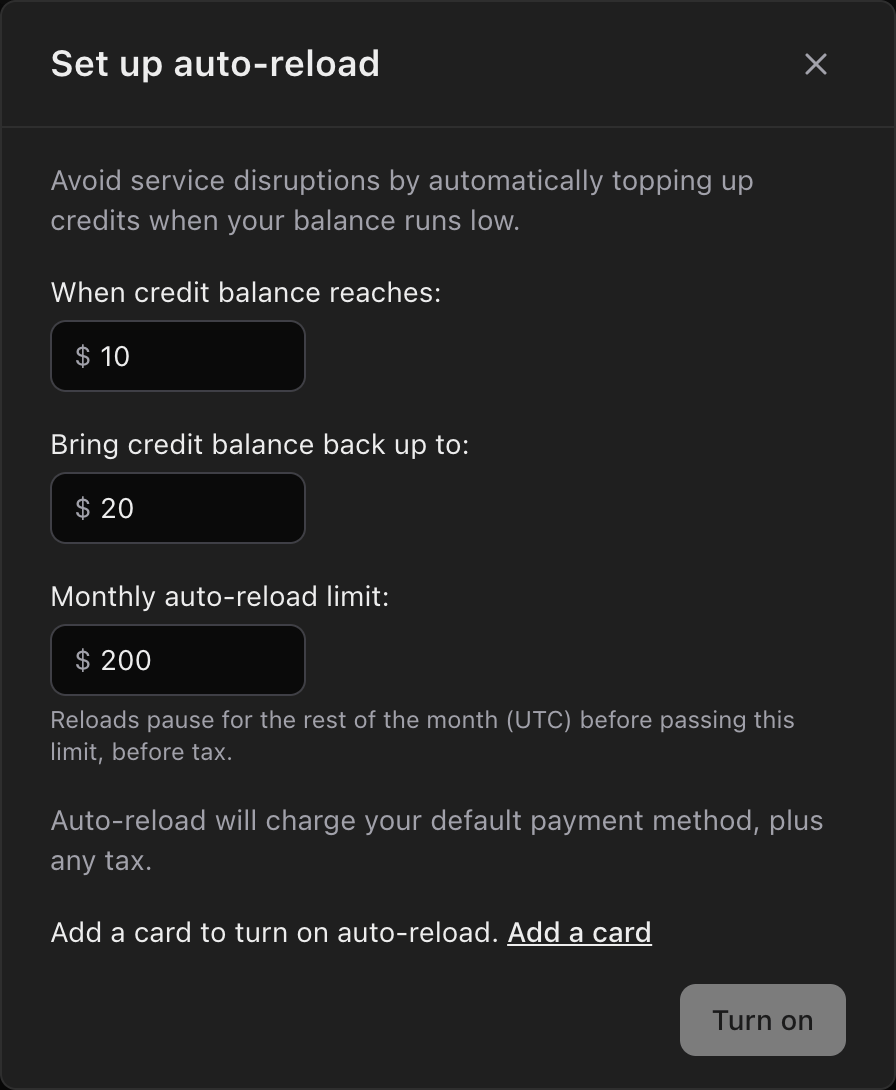
    • When credit balance reaches: the balance that starts a reload, $5 or more.
    • Bring credit balance back up to: the balance after a reload, at least $10 above the first amount.
    • Monthly auto-reload limit: the most auto-reload can charge in a calendar month (UTC), before tax.
  3. Choose Turn on.
The Set up auto-reload window, with When credit balance reaches set to $10, Bring credit balance back up to set to $20, and a Monthly auto-reload limit of $200.
Auto-reload charges your default card, plus tax. Once a reload would pass the monthly limit, reloads pause until the next month. The Auto-reload credits line on the Billing page shows whether it’s On, Off, Paused or Needs attention. For Needs attention, the line beside it says why. Usually you turn auto-reload on again, after checking or replacing the card if a payment failed.

Edit billing details

Your company name, billing email, address and tax ID appear on every invoice. Choose Edit billing details to change them. Adding a card replaces the address with the card’s billing address. Receipts and invoices are emailed to the billing email.

See invoices

Invoice history lists your organization’s ten most recent invoices, with amounts before tax.

Set a monthly spend limit

The Monthly spend limit caps what the organization can spend each month. See Spend limits and budgets.